

Convert XLSX to CSV Without Losing the Important Columns
An Excel workbook can contain several sheets, formulas, charts and formatted cells. CSV usually represents a single flat table, so converting a workbook requires choices about which values and which sheet are actually useful.
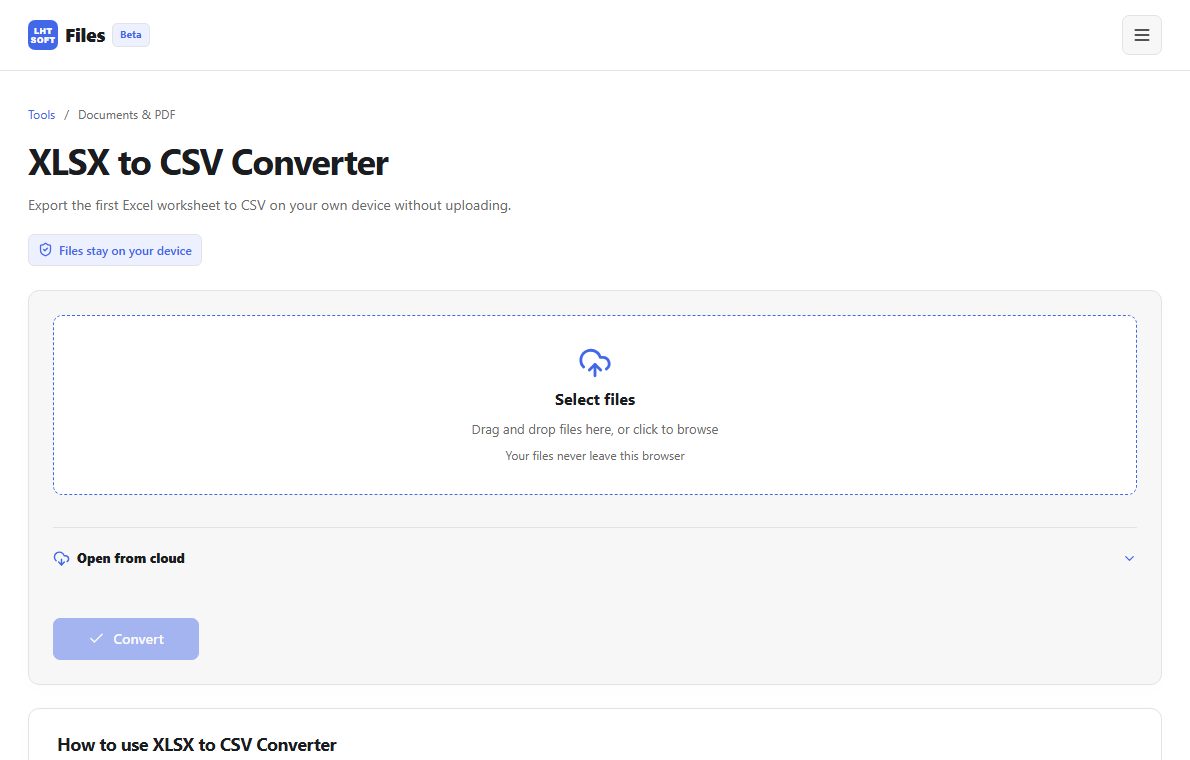
Decide which sheet and table to export
Identify the worksheet containing the target dataset. Remove introductory rows and totals that are not part of the table. A workbook with multiple sheets cannot be represented as a single ordinary CSV without an explicit combination step.
Distinguish formulas from displayed values
CSV has no formulas, styling, charts or multiple worksheets. Compare calculated values after conversion, especially cells containing percentages, currency or error messages; the exported values may depend on how the workbook was last recalculated.
Watch dates and long identifiers
Spreadsheet applications may display dates and long IDs using special formatting. A plain CSV may reveal underlying serial values, strip leading zeros or change precision when opened in another application. Inspect representative edge cases.
Verify encoding and delimiter
Check non-English characters and commas inside quoted text. After exporting, load the CSV into the intended destination application and verify the headers, record count and key totals instead of judging only by a text preview.