Is that image really transparent or just a checkerboard?
The gray-and-white checkerboard seen in an editor usually represents transparent areas, but the same pattern can be saved as ordinary visible pixels. An image that appears transparent in a thumbnail may still have a painted backdrop. Rather than trusting a filename or preview, check how the actual exported file behaves over a different background.
Understand what an alpha value means
Image formats such as PNG can store transparency information. In an RGBA image, an alpha value of 0 represents a fully transparent pixel and 255 a fully opaque one; values in between can produce partially transparent edges. A file being named .png does not prove any pixels are actually transparent, and some PNG files represent transparency through a palette or another mechanism instead of full RGBA channels.
Why the checkerboard sometimes follows the image
Editors often draw a checkerboard only as a background guide, not as part of the picture. If you export a screenshot of the editor or flatten the layer onto that pattern, the checkerboard becomes real colored pixels. The image may still be a valid PNG, but when placed over a solid blue or red card the old gray squares remain visible because there is nothing transparent in those areas.
A reliable transparency test
Place the file over two distinctly different solid background colors in a layer-capable editor. A truly transparent corner takes on the color beneath; a painted checkerboard stays gray and white. Zoom in around curved edges to spot pale halos. For an independent check, inspect the decoded pixel alpha values with a trusted tool; note that the mere presence of an alpha channel is not enough if every pixel remains fully opaque.
Export without losing the result
Keep the editable original, hide or remove any unwanted background layer, and export to a format and settings that preserve transparency. PNG is one suitable lossless choice for this exercise; JPEG does not carry alpha transparency. After saving, reimport the exact downloaded/exported file and repeat the two-background test. Sharing apps can process images, so verify the file at its final destination when the transparent background matters.
Try two original PNG samples
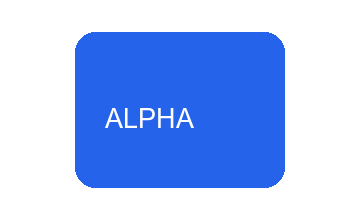
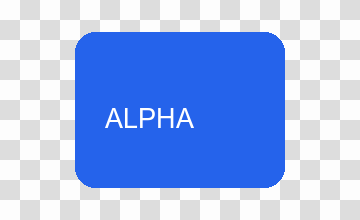
- Download learn-real-alpha.png and learn-painted-checkerboard.png below. Both show a blue rounded panel with the word ALPHA.
- In an image editor, place the first file above a saturated red layer. Its upper-left corner should reveal the red; the blue panel stays visible.
- Place the second file above the same red layer. Its gray-and-white squares remain visible because they were drawn into an opaque RGB image.
- Repeat over a dark background and inspect the outer corners and rounded edges. Re-export only the transparent version, then reopen that exported file to verify the result.
The original fixture was generated in RGBA mode with a fully transparent corner (alpha 0). The comparison PNG was generated in RGB mode with an opaque checkerboard. These are checked properties of the provided files, not a claim about third-party images.